
Keep records for EU obligations, with data from your suppliers
This help explains what nexCOMPLIANCE is and how you use it. It has three parts: orientation, a step-by-step guide and screenshots.
The Regulation packs are drafts. Nobody has reviewed them legally. nexCOMPLIANCE gives no legal advice and does not confirm conformity. Each deadline and each field shows its source.
1. Orientation
A record goes from questionnaire to approved version in five steps
nexCOMPLIANCE helps a company to meet EU obligations that need structured evidence. The company collects data, also from suppliers. It checks and approves the data. It keeps one version that does not change.
Each obligation has a Regulation pack. The Regulation pack holds the questionnaire, the deadlines, the record kinds with their documents and fields, and the sources. The first version has three Regulation packs: CBAM supplier data, EUDR due diligence and Data Act access. For the digital product passport, nexCOMPLIANCE shows the obligation and links to nexDPP.
nexCOMPLIANCE does not submit data to an authority. You submit the data to the official register yourself.
Terms
- Obligation
- An EU obligation of your company. The questionnaire decides if it applies.
- Regulation pack
- The content of nexCOMPLIANCE for one legal act. It holds the questionnaire, the deadlines, the record kinds, the fields, the sources and the open points.
- Record
- The evidence for one thing, for example the emission data of one installation for one year. States: draft, in review, approved.
- Supplier request
- A link that lets a supplier fill the fields of one record. The link expires and works once.
- Approved version
- A copy of the record at the time of approval. It never changes. You export it.
Roles
- compliance:manager
- Answers questionnaires, keeps records, asks suppliers, reviews, approves and exports.
- compliance:viewer
- Reads everything in the workspace and exports. Changes nothing.
- Supplier
- Opens the link, fills the requested fields and sends the answer once. Has no account.
2. Hands-on guide
Sign in with your user name and password. When you sign in for the first time, set a new password.
Check if an obligation applies
Start with the questionnaire. Without an obligation that applies you cannot create a record.
- Look at the Overview page. It shows deadlines, missing values and open supplier requests.
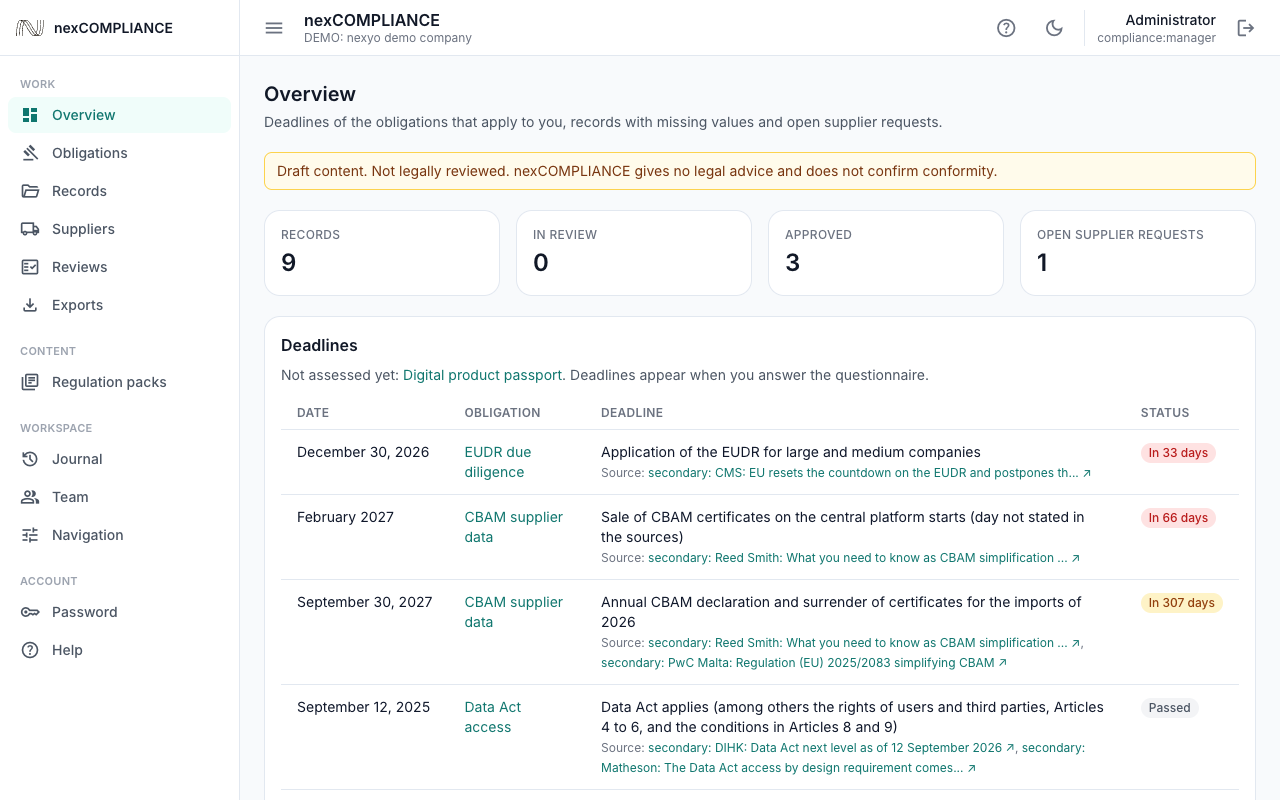
Overview with deadlines, missing values and supplier requests - In the sidebar, click Obligations. Click the obligation, for example CBAM supplier data.
- Answer the questions. Under each question you see the source. Click Save answers.
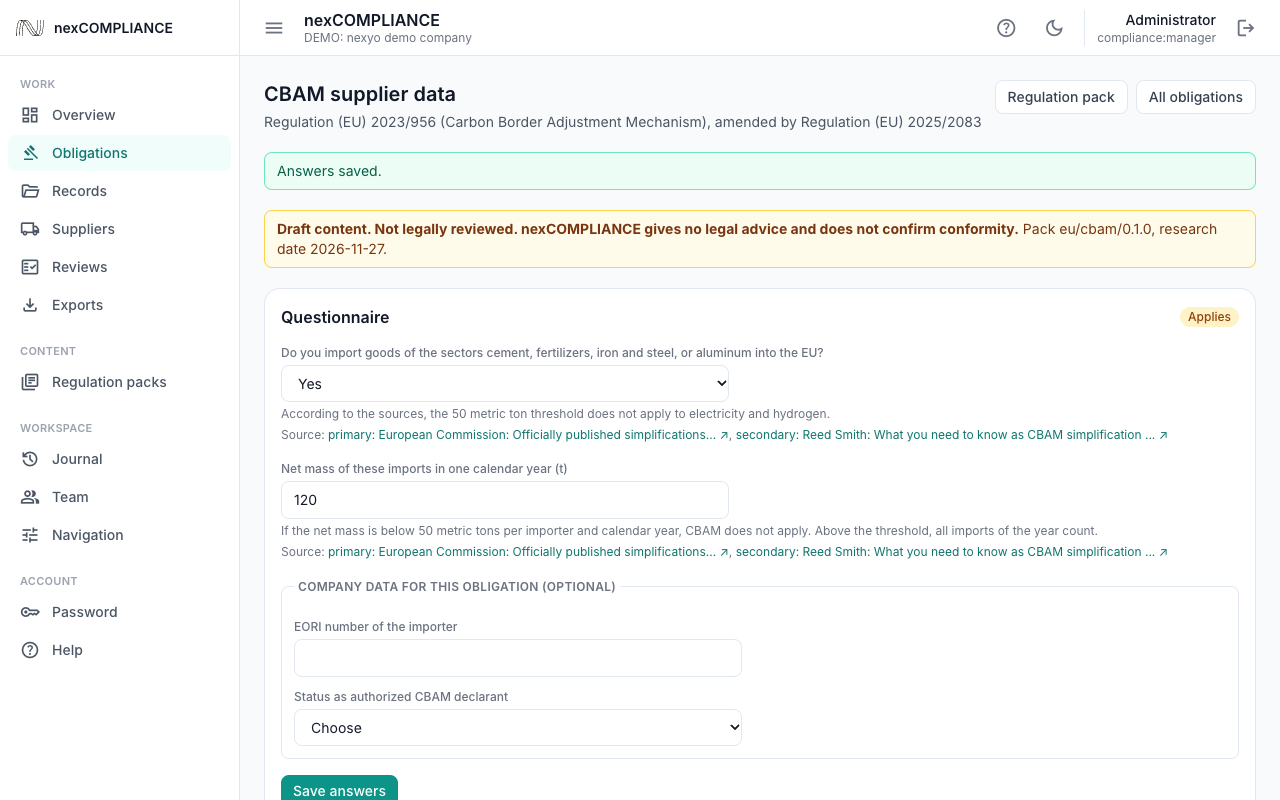
Questionnaire of the CBAM Regulation pack, with sources - Read the result. If the obligation applies, the deadlines appear with their sources.
Create and fill a record
A record collects the data and evidence for one thing.
- Under the result, click New record. Fill the identity, for example supplier, installation and reporting year. Click Create record.
- On the page of the record, fill the fields of each document. Click Save record. The box Missing before review lists the required values that are still empty.
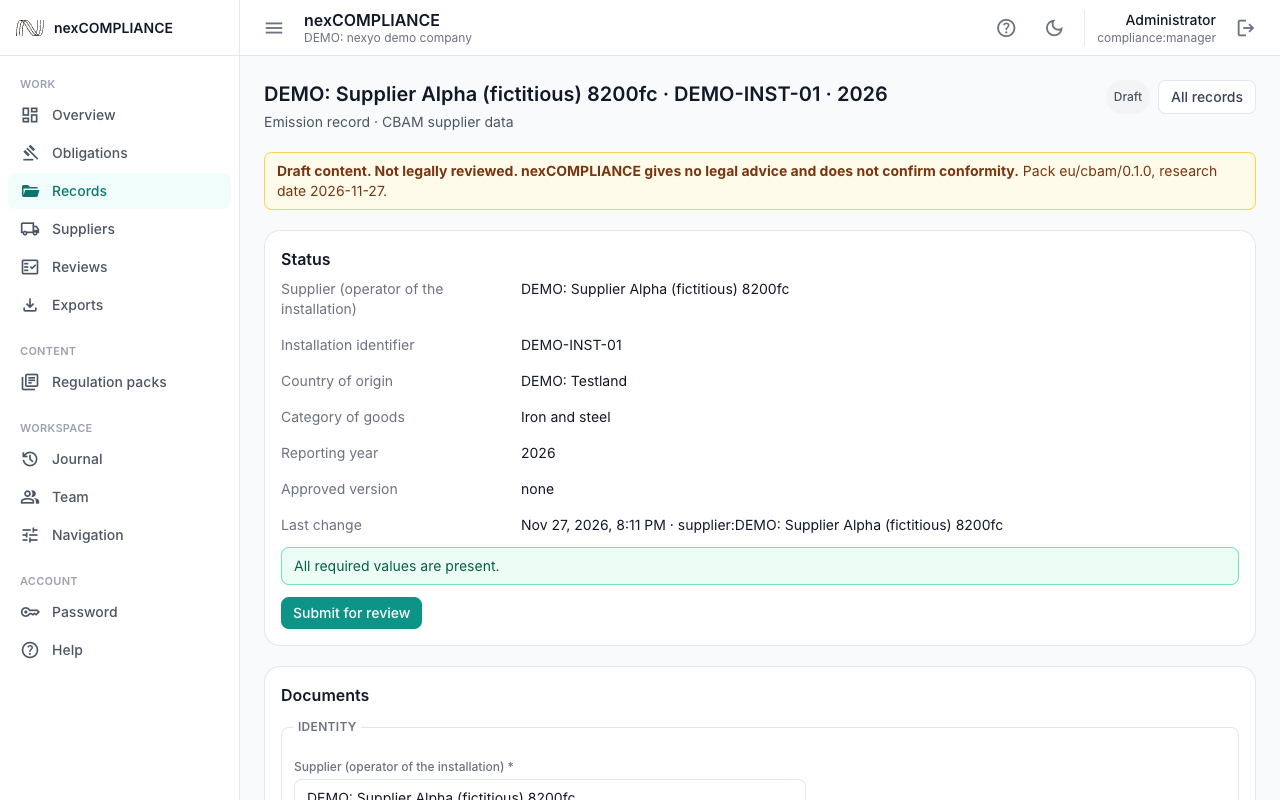
Record with documents and the list of missing values - Under Files, upload evidence as PDF. Only PDF files of at most 5 MB are accepted.
Ask a supplier for data
The supplier fills the fields that the pack marks for suppliers. The supplier needs no account.
- On the page of the record, open New supplier request. Enter the supplier and the validity in days. Click Create request.
- Copy the link. Send the link to the supplier, for example by e-mail. The link appears only once. nexCOMPLIANCE keeps only a hash of the link.
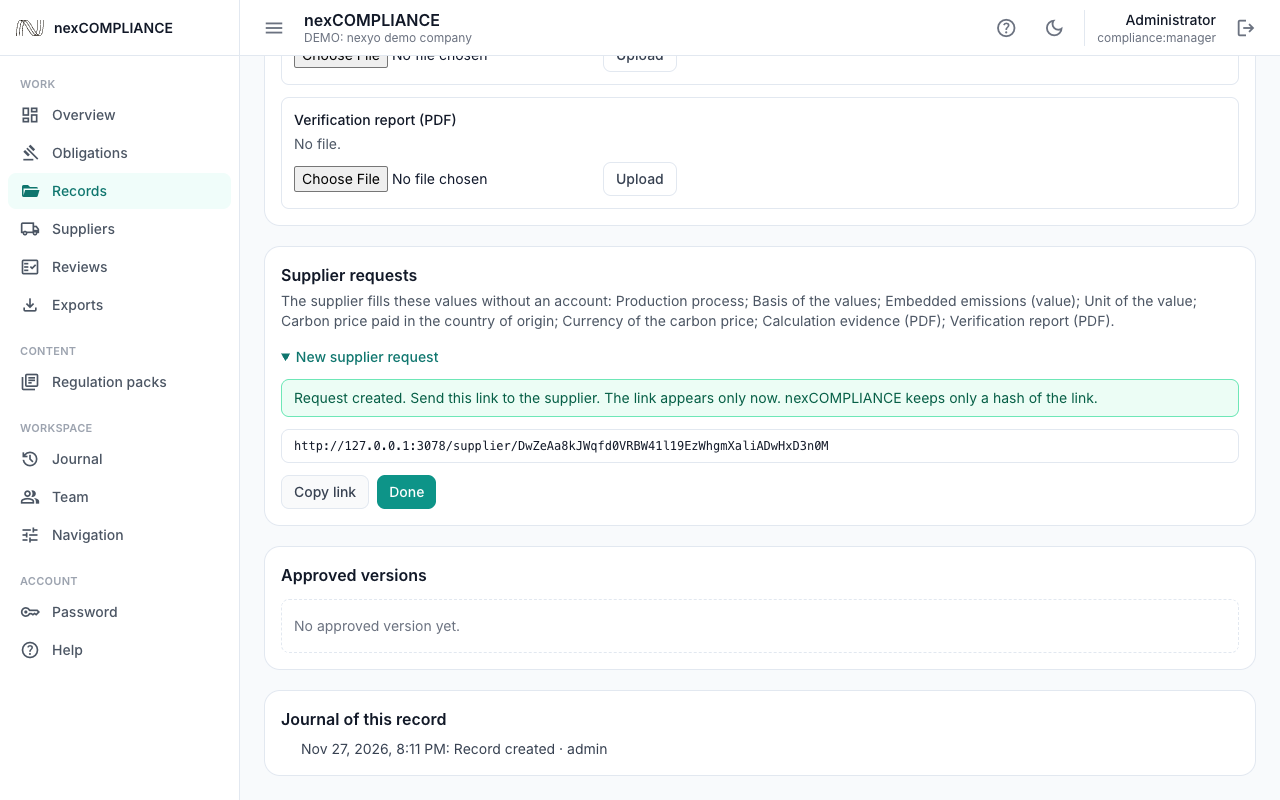
New supplier request with the link that appears once - The supplier opens the link and fills the form. The supplier confirms the data and clicks Send answer. The values go into the record.
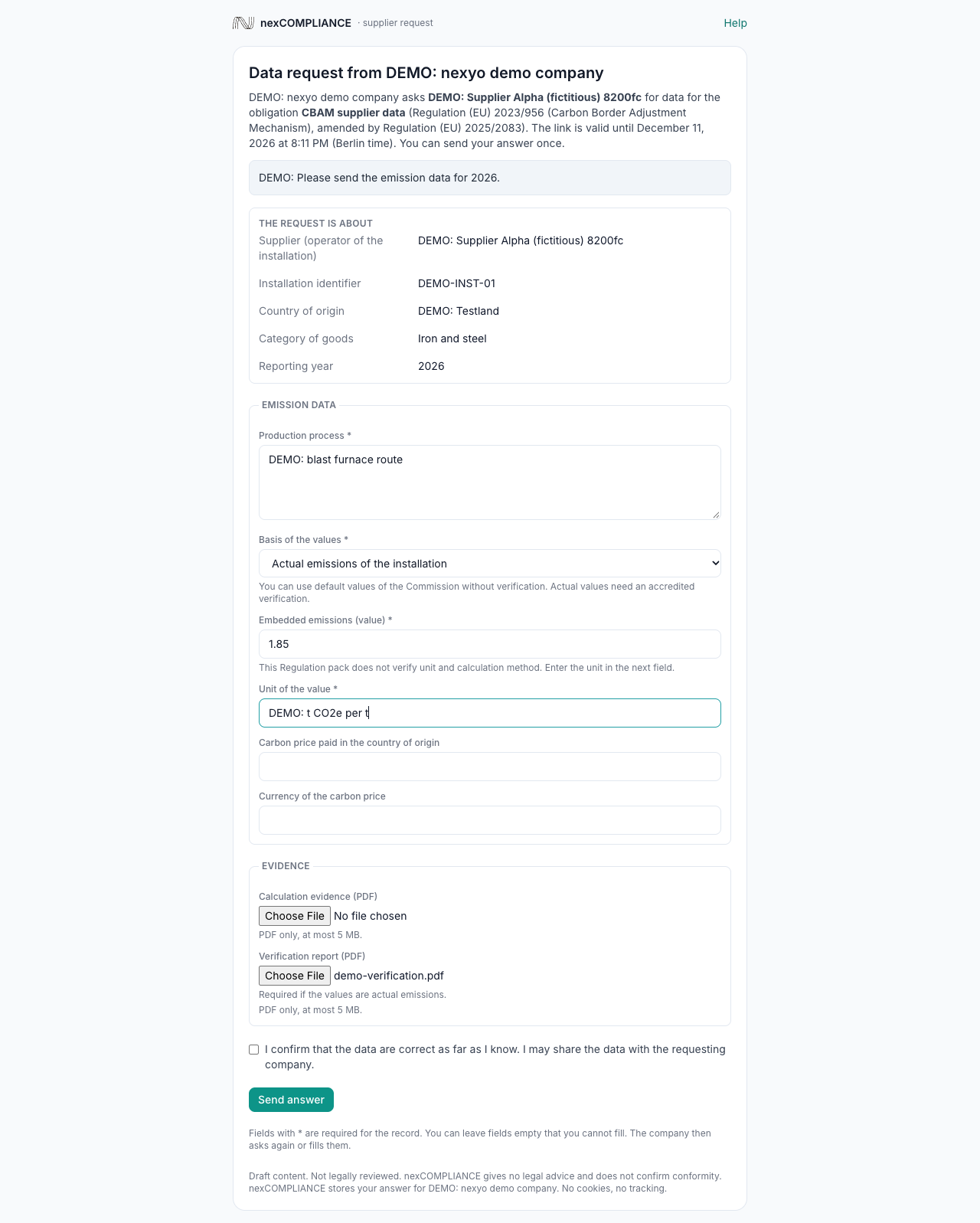
Form of the supplier, without an account - On the Suppliers page you see the state of each request. If the supplier does not answer, click Revoke. The link then stops to work.
Review, approve and export
The four-eyes rule applies. These persons cannot approve a record: the person who submitted it, a person who changed it, and an account that the submitter created or reset.
- On the page of the record, click Submit for review. This works only when no required value is missing and no supplier request is open.
- A second person opens Reviews and checks the values. If the values are correct, this person clicks Approve. If not, this person writes a comment and clicks Reject.
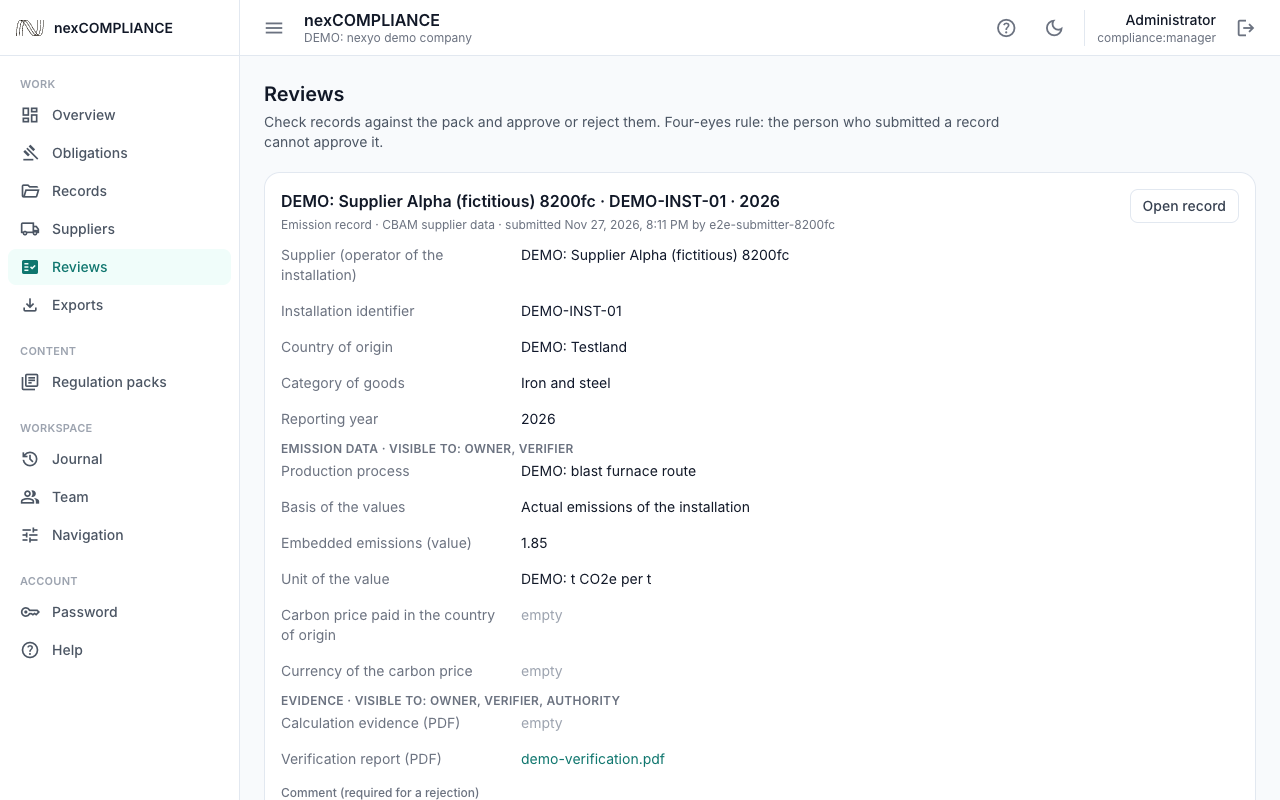
Review with the buttons Approve and Reject - Open Exports and click Export JSON. The file holds the pack, the data, the file digests and the review trail. The export is written to the journal.
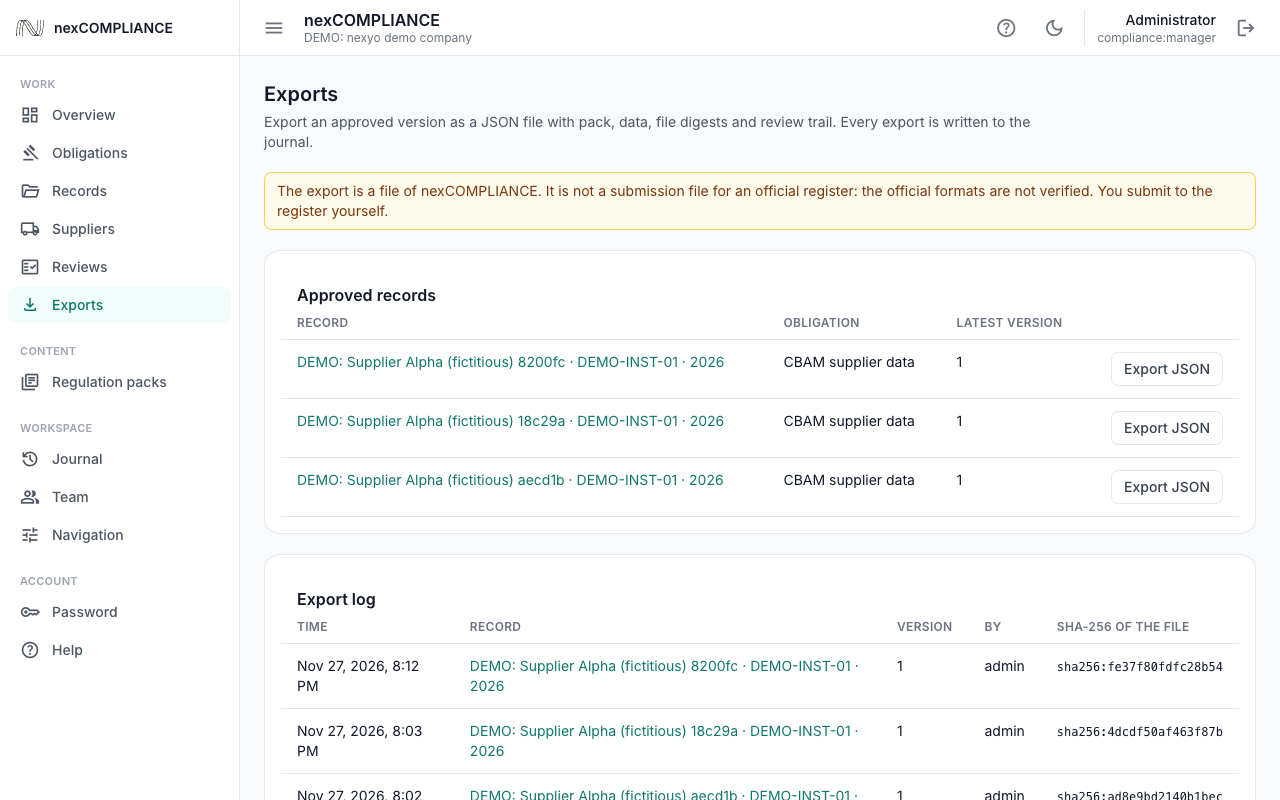
Exports with the export log
Adapt the workspace
Managers set up the team and the sidebar.
- On the Team page, create accounts with the role compliance:manager or compliance:viewer. The initial password appears once.
- Open the Navigation page. Rename, add or remove groups. Sort groups and items by drag and drop. Move items between groups. Hide items, or give items their own label. Click Save navigation.
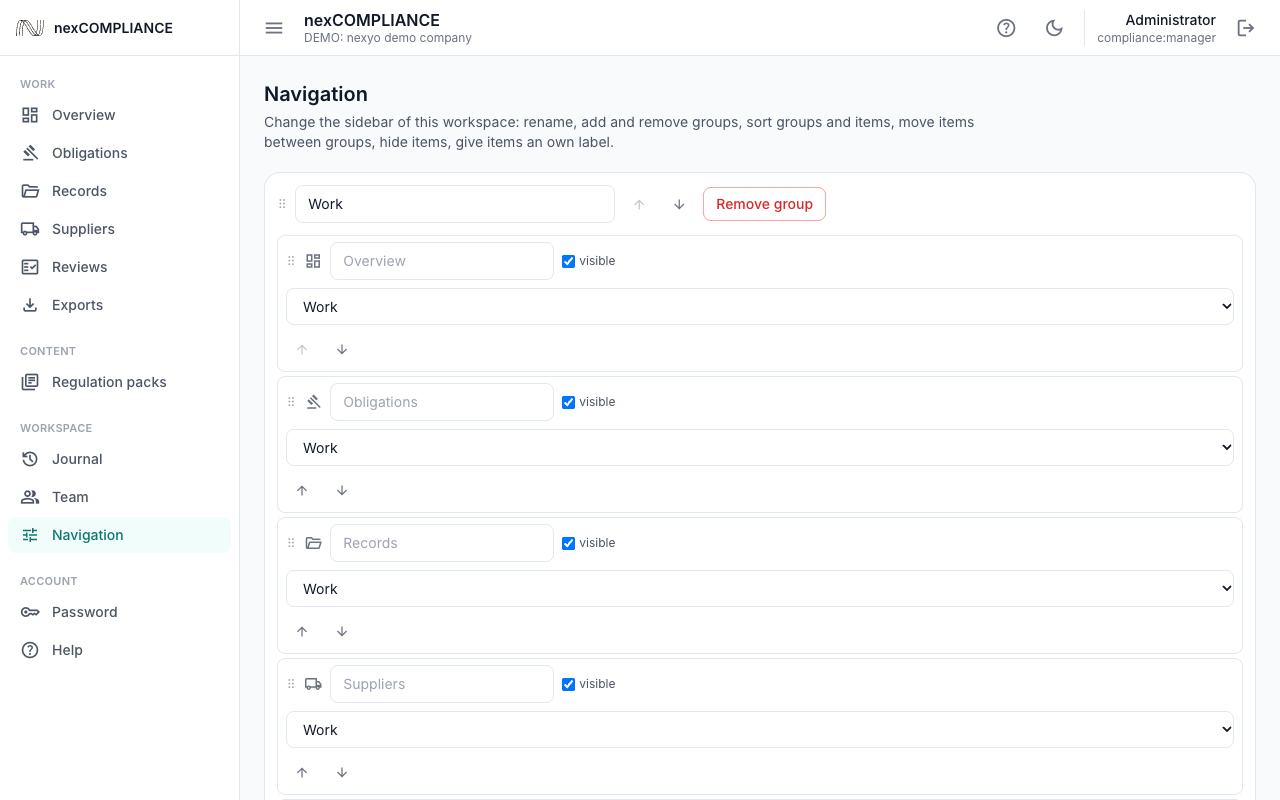
Navigation editor
Typical problems
If something does not work, look here first.
| You see | What to do |
|---|---|
| There is no button New record. | Answer the questionnaire of the obligation. The button appears when the obligation applies. |
| Submit for review cannot be clicked. | Enter the values listed in the box Missing before review. Wait for the supplier answer, or revoke the open request. |
| Approve cannot be clicked. | You submitted or changed the record, or the submitter created your account. Another person with the role compliance:manager must approve it. |
| The supplier sees "This link cannot be used". | The link expired, was revoked or was used. Create a new request and send the new link. |
| Sign-in failed several times. | If you fail five times, nexCOMPLIANCE locks the account for 15 minutes. Wait, or ask a manager to unlock the account on the Team page. |
| A file is not accepted. | Use a PDF file of at most 5 MB. Other file types are not accepted. |
Limits of this version
This is the first version (wave 1). These parts follow later or need a decision.
- The Regulation packs are drafts and not legally reviewed. Each Regulation pack page lists its open points.
- The export is not a submission file for an official register. The official formats are not verified.
- Records stay in nexCOMPLIANCE. Storage as profiles in nexDPP and sharing with customers, verifiers and authorities follow in wave 2.
- nexCOMPLIANCE does not send e-mails. You send the supplier link yourself.
- Sign-in through the nexHub is planned. Until then, nexCOMPLIANCE has its own accounts.
- Only demo data. Names that start with DEMO: are fictitious.
3. Screenshots
The screenshots come from a running instance with demo data. They show the steps of the guide.
- Overview with deadlines, missing values and supplier requests (see step)
- Questionnaire of the CBAM Regulation pack, with sources (see step)
- Record with documents and the list of missing values (see step)
- New supplier request with the link that appears once (see step)
- Form of the supplier, without an account (see step)
- Review with the buttons Approve and Reject (see step)
- Exports with the export log (see step)
- Navigation editor (see step)
The screenshots are in English. The interface is in English.